 Software Field Notes
Quickshell Sway Modes Plugin
Written on August 30th, 2026 by Alexandre Pascoal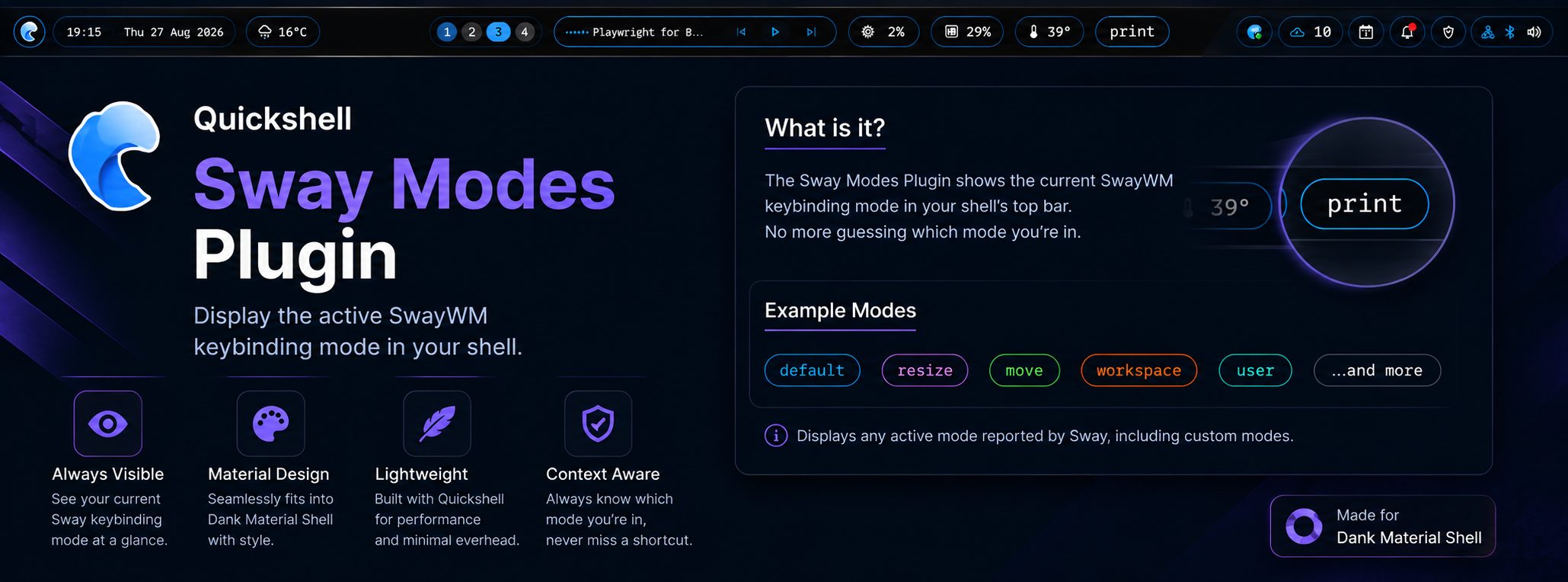
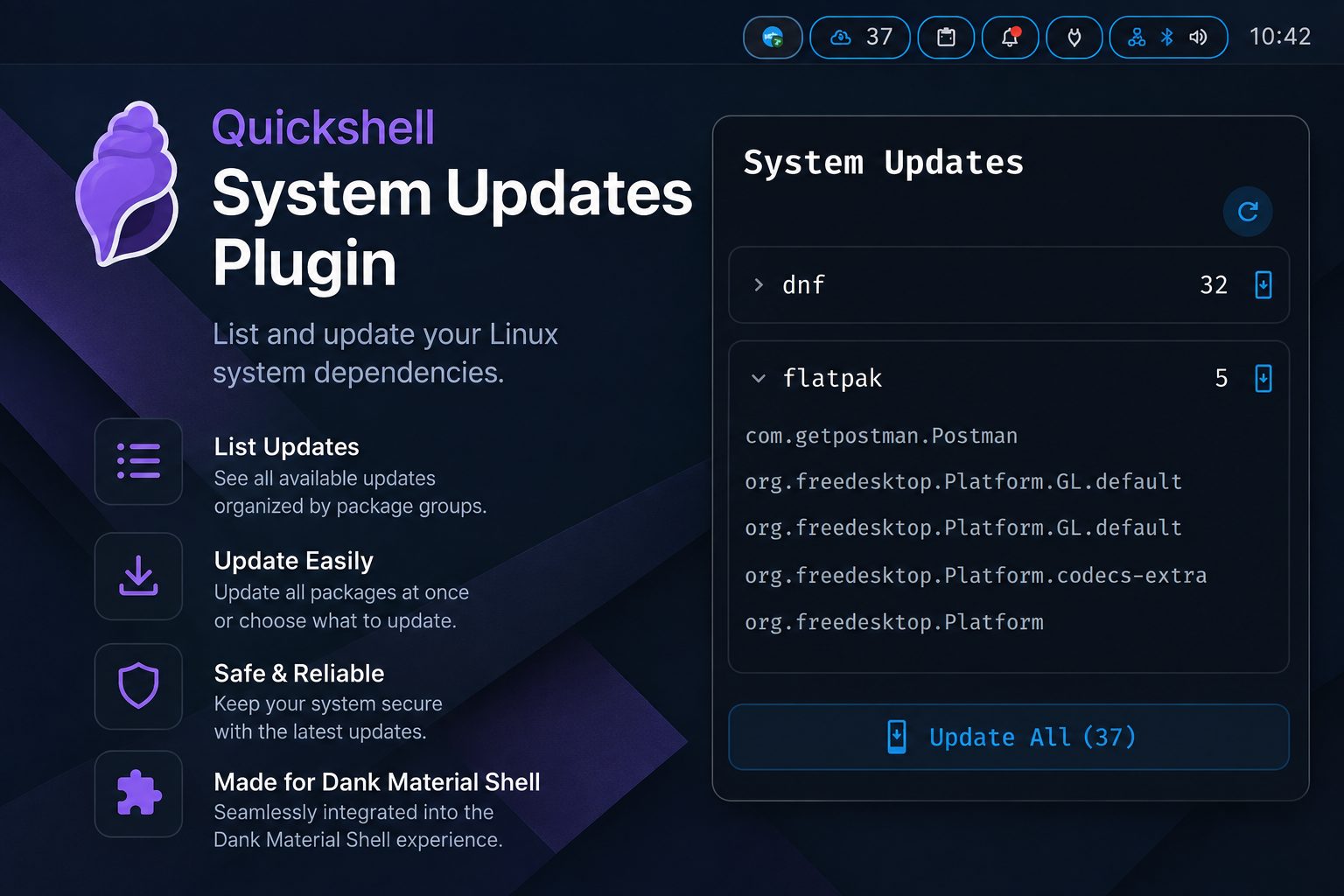
In the same spirit as my earlier post, Quickshell System Updates Plugin, I created another plugin to integrate the Dank Material Shell and SwayWM.
Problem
Sway has a keybind configuration that enables the user to create “layers”, similar to the vim modes, or the layers present on a computer keyboard. This allows a key or key combination to have different actions depending on what mode is active.
As an example, I have the CMD+M to open the mail client in normal mode and have the same key combination to open the mastodon client in the social mode. To define this in Sway, and not expanding on this, we define the mode, the keybinds in it, and a keybind to activate it.
mode "print" {
	# Print Area
	bindsym A mode "default" ; exec dms screenshot # Print Area
	# Print Screen
	bindsym S mode "default" ; exec dms screenshot full # Print Screen
	# Print Window
	bindsym W mode "default" ; exec dms screenshot window # Print Window
	# Exit Print Mode
	bindsym Escape mode "default" ; # Exit Print Mode
}
# Open Print Mode
bindsym Print mode "print" ; # Open Print Mode
The problem with this is that when using the OS we have no way of knowing what mode we’re in — and if our cats like to walk across the keyboard, we’re in for a surprise :)
Solution
In DMS there is a plugin that displays the mode that is active but it only works for Hyprland, and since I’m using sway… you know what I did.
I created a plugin to display the name of the active mode in the Dank Bar, using the theme style. It only displays the name of the mode if the active is not the default.


Resolution
Sway has the binding state available using the command swaymsg -t get_binding_state, which returns a json with the name of the active state.
swaymsg -t get_binding_state
{
  "name": "default"
}
I used the Process QtObject to execute the swaymsg call and retrieve the response. The Process has a list of properties from where I used the id, command, and stdout.
With the command I execute the command and with the stdout retrieved the response, the id is the identification of the Process component so we can call it from other code components.
I used the SplitParser to read the streamed stdout line by line and extract the value of the name field from the returned JSON (not my brightest work), giving me the name of the current active mode.
I also created two global variables to store the name of the mode and a flag that controls whether it should be displayed (hidden when the mode is default). These variables are updated in the Process and consumed by the horizontalBarPill to show or hide the name.
I’m not sure whether the binding state could be monitored another way, but I used the Timer from QtQuick to execute the Process every 200 milliseconds.
Conclusion
As in the other post, my knowledge of Quickshell is not the best. But the ability to create these types of applications gives me some curiosity to play with the framework every time I find these kinds of cases, and to improve the apps that I build.
This plugin has room to be improved… when retrieving the data from the swaymsg, I’m pretty sure that if I invest some time it could be better developed. Another point that I missed and didn’t take the time to implement is the verticalBarPill — at the moment the plugin only displays the text horizontally, so it won’t be visible in a vertical bar.
If you are interested in using it, improving it, or just taking a look at it, you can find it in the Codeberg repo quickshell-sway-modes-plugin.
If you find an issue with it, or have some improvement to it, feel free to ping me or make a proposal in the repo.